If you spend a lot of time on a Windows computer or laptop, you may not want to see notifications on your mobile. Or you have to use your mobile from time to time for notifications coming to your mobile.
In this case, why not merge the notification coming to the mobile to the PC you work on? If so, you can find out what notifications are coming to your mobile while you are working.
For that you need to know some information about your mobile and laptop first. This means that your laptop needs to be updated on or after April 2018 for this feature.
Similarly, the mobile must be running at least Android 7.0. In that case, you can get an app called 'Your Phone' on your PC.
Which has been automatically made available by the company since the April 2018 update of Windows. This means you don't have to worry about downloading.

Now start by clicking here and downloading the app called 'Your Phone Companion' on your phone.

Download the app on your mobile, sign in with your Microsoft account and click 'Continue' below. At the same time, the app will ask you for the necessary permission on the mobile. To do so, click 'Continue' again. As soon as you click 'Continue', the app will initially ask for access to your contact number.
Similarly, the phone will ask for access to your photo and file and your SMA, all of them, move forward.
After giving permission to all these things, on the next screen, the app will ask you for access to run in the background of the mobile. Click on 'Continue' to proceed.
As soon as you click on 'Continue', a 'pop-up' notification will appear. This app contains information that will run continuously in the background of your mobile. Below that are the options 'denay and 'allow
If you want to keep your mobile connected to your PC constantly, do 'Alau'. With that, the work on your phone is done.
Now go to the laptop or computer you are using and go to the 'Start Menu' of Windows, search for 'Your Phone' and click on it.
After clicking on it, the app will automatically detect your phone if you use the same Microsoft account you used on your mobile before.
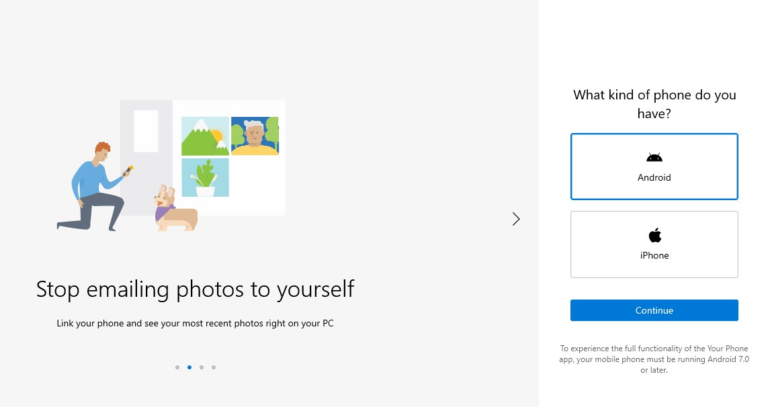
If not, when you open an app called 'Your Phone' on your PC, it will give you the option of which phone you are using, Android or iPhone.
In the case of the iPhone, the app doesn't send all the notifications, so it's not very effective. Click on an option and then click on the 'Continue' option below it. Clicking on Continue will prompt you to download an app called 'Your Phone Companion' on your mobile.
Since you have already downloaded and set it up, proceed by clicking on the small box (S, I have installed your phone campaign) below it. At the same time, a notification will come to your mobile. In which you will be asked to connect to the PC.
Click on the 'Fire' option in it. With that, a welcome message will come to your PC. Below that, if you want to pin the app to the taskbar, click on the 'Pin App to Taskbar' option and click on 'Get Started'.
After doing so, you will get information about various features available in the app. There will be 'See My Notification', 'Sent Text Message' and 'View My Photo'. Click on the notification.
Clicking there will ask for permission to notify your phone. When you click on 'Open Settings on Phone', your mobile will receive a 'pop-up notification'. Click on the 'Open' option in the notification and turn on 'Allow Notification Access'.

After doing so, you will receive notifications on your mobile computer. You can also set messages and photos.
In that case, you can read and reply to the message coming to your mobile from the computer. Also, you can easily see the photo.




Comments
Post a Comment